
Premium subscribers can run two blogs from the same Pagecord account. This is useful if you want separate spaces for different projects, audiences, or writing styles.
Opening Manage blogs
- Log in to your dashboard
- Click your blog avatar in the top-right corner
- Click Manage blogs
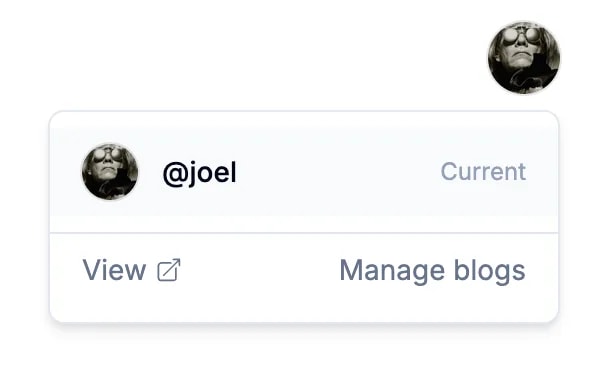
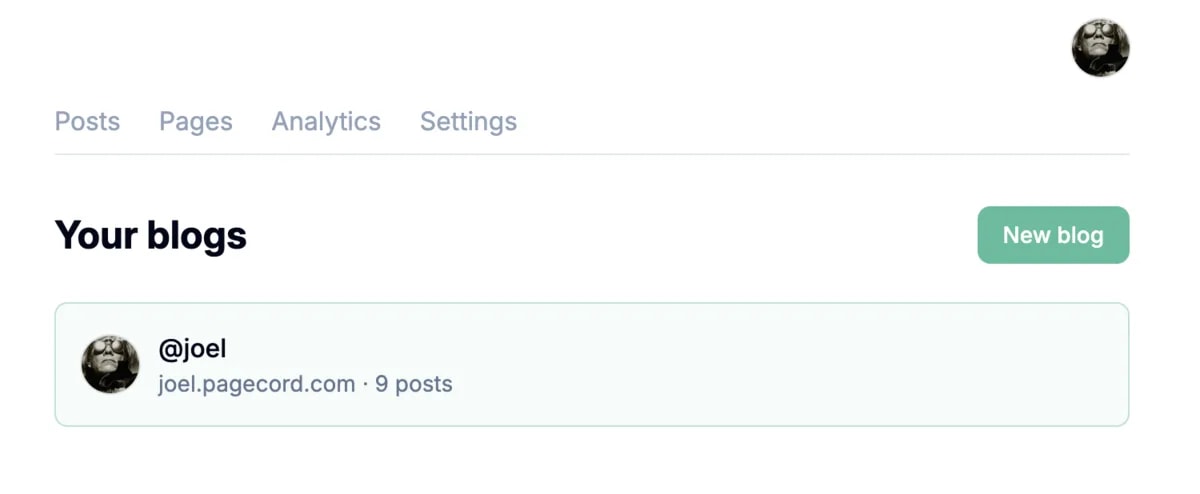
From there, you can see every blog attached to your account, create a new one, or delete a blog you no longer need.
Creating a new blog
- Open Manage blogs
- Click New blog
- Choose a subdomain
- Add an optional title
- Click Create blog
After creating a blog, Pagecord switches you to the new blog automatically.
Switching between blogs
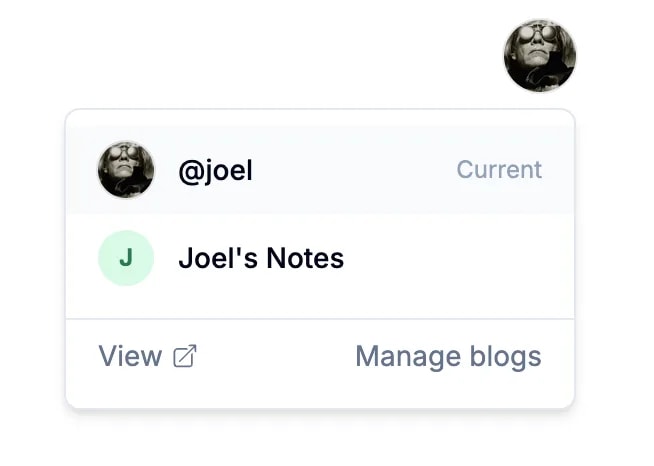
Click your blog avatar in the top-right corner, then choose the blog you want to work on.
Each blog has its own posts, pages, analytics, custom domain, navigation, audience settings, exports, API settings, and appearance settings.
Your account settings and billing are shared across all blogs.
Deleting a blog
Open Manage blogs, then click Delete next to the blog you want to remove.
Deleting a blog moves it to trash. Deleted blogs are kept for 30 days before being permanently removed.
You can restore a deleted blog from Blog trash, or permanently delete it yourself if you want to free the subdomain for reuse.
You must always keep at least one blog on your account.
Blog limits
Free accounts can have one blog. Premium subscribers can have two blogs.
If you are on the free plan, upgrade to Premium from Settings → Billing to add a second blog.